How to Secure Your Home Wi-Fi for Security Devices

Key Take-Aways
- A properly secured network is essential to protect cameras from hacking and system takeovers.
- Separate your security cameras and smart devices on a guest network to reduce risk.
- Use WPA3 (or WPA2 minimum), a quality VPN and strong passwords to secure home WiFi for all security devices.

I’ve noticed that most people in the DIY security niche tend to focus on cameras, sensors, and alarms. Fair enough; those are the visible parts of a system, and they do require attention.
But in reality, your network is the backbone holding everything together. If your WiFi is not locked down properly, even the best gear becomes vulnerable these days.
Security cameras, door sensors, and smart locks all rely on your network to function. If someone gets into that network, they do not need to break a window. They can quietly interfere from the outside.
I have seen setups where people spent thousands of dollars on hardware but left the router untouched, still using factory settings.
That is like installing a high-end lock and leaving the key under the mat (which is, sadly, also something many people still do…).
Here is the simple truth: if you want to protect cameras from hacking, you start with the network, not the camera.
Lock Down Your Router First (Non-Negotiable)
Before you think about advanced tweaks, you need to handle the basics. Fortunately, it’s pretty easy to get this sorted.
Step 1: Start by logging into your router settings. Most people never do this, which is exactly why attackers rely on it.
You need to change router settings for security devices to operate safely. Start by replacing the default admin username and password with something unique.
Step 2: Encryption matters just as much as the password itself. In their safety guide for routers, Apple notes that the current standard is WPA3, which offers stronger protection than older protocols.
If your router supports it, use it. This is a core step when optimizing Wi-Fi for home security devices to ensure your data stays private.
Step 3: Whenever you use anything via that router, ensure the connection goes through a solid, strong VPN. This will scramble your IP address and make your system much harder to hack.
Separate Your Devices Using a Guest Network
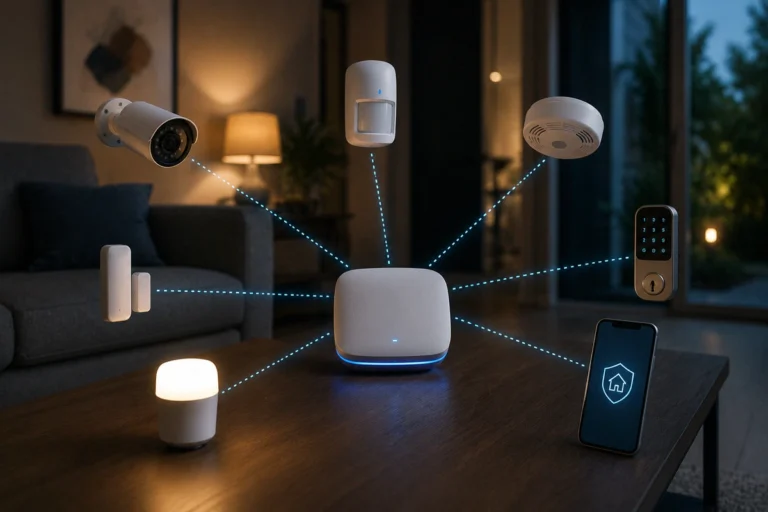
One of the most overlooked strategies in WiFi security for smart home devices is network separation. Not all devices are created equal and segregation is absolutely required.
Your laptop and phone are generally more secure, especially if you’re using a VPN. Cheap smart plugs, cameras, or older IoT gear are not always as robust.
That is where a guest network for smart home security comes in. By isolating your gear, you ensure that even if a sensor is compromised, your sensitive personal documents on your PC remain unreachable.
This is particularly important for renters in apartments where neighboring networks are in close proximity.
Adjust the Best WiFi Security Settings for IoT Devices
A few small changes in your router settings can significantly improve your overall security.
- First, disable WPS (WiFi Protected Setup). While it makes pairing easy, it is a well-known vulnerability.
- You should also turn off remote management unless you truly need it. These are common home security threats most people ignore.
Don’t neglect this. It’s a part I ignored for years until I saw an unfamiliar device on my list. Keeping a secure home WiFi environment requires a proactive mindset.
Router Settings Checklist
- Disable UPnP: Prevents devices from automatically opening ports to the internet.
- Turn off WPS: Eliminates a common pin-based entry point for hackers.
- Firmware Auto-Update: Ensures the router patches itself against new exploits.
- Broadcast SSID: Consider hiding your network name to stay off the radar of casual scanners.
Keep Your Hardware and Firmware Updated
Your router is not the only thing that needs updates. Every device connected to your network matters.
Security cameras, doorbells, and smart locks all run firmware.
Manufacturers release updates to fix vulnerabilities, and skipping them is essentially leaving your doors unlocked.
If a device is so old that it no longer receives updates, it is time to upgrade your DIY system.
Monitor and Audit Connected Devices
You do not need advanced tools to keep an eye on your network, just some attention and …your eyes.
Most modern routers show a list of connected devices, so make it a habit to check this list occasionally. Look for unknown devices or anything connected at odd times.
If something looks wrong, secure home WiFi protocols dictate that you should change the password immediately.
Unusual Activity Red Flags
- High Bandwidth Usage: Could indicate a camera is uploading data to an unauthorized location.
- Generic Device Names: Devices showing up as Linux-Device or Unknown should be verified.
- Connection at Odd Hours: Security devices should be active, but constant data bursts at 3 AM might warrant a check.
Smart Habits for Long-Term Defense
In summation, without a secure home WiFi setup, your security devices cannot do their job properly.
The good news is that most of what you need to do is simple: change router settings for security devices, use a guest network for smart home security, and stay on top of updates.
Beyond settings and hardware, your daily habits of course also play a role.
- Do not reuse passwords across devices. Use a password manager to keep track of 16+ character passwords.
- Be cautious when granting app permissions,
- Only buy devices from reputable brands with ongoing support.
- Ensure your router is not sitting in a window where a passerby could see the reset button or default password sticker. Yes, this sounds ridiculous, but yes, it does happen, especially in condos. I’ve seen it, and it always makes me laugh.
- Never manage your WiFi security for smart home devices from an open cafe network. If you have no other option and you really need to do this, USE A VPN!